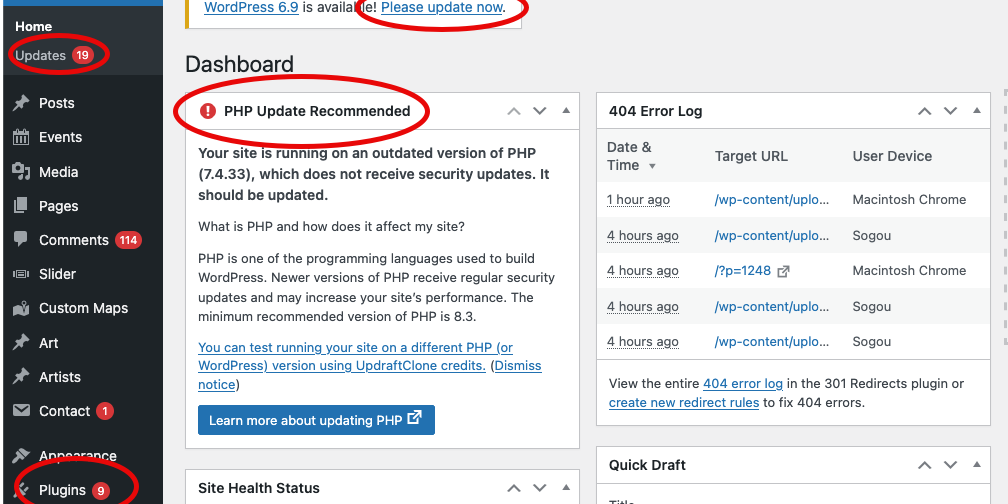
You log into your WordPress dashboard and see those little notification bubbles. WordPress core needs updating. Three plugins have updates available. Your theme has a new version.
And you think: “Everything’s working fine right now. Maybe I’ll deal with this later.”
I get it. Updates feel risky. What if something breaks? What if the site goes down? What if you lose all your content?
But here’s what most business owners don’t realize: not updating is far riskier than updating.
After nearly 20 years of managing WordPress websites, I’ve seen both scenarios play out hundreds of times. Sites that break because of updates? We can fix those in hours. Sites that get hacked because they weren’t updated? Those are disasters that take days to clean up and sometimes can’t be fully recovered.
Let me explain why WordPress updates actually matter, what can go wrong, and, most importantly, how to handle them safely so you’re not gambling with your business website.
The Real Reason WordPress Needs Updates
WordPress isn’t a static piece of software you install once and forget about. It’s living, breathing code that gets better over time – and more importantly, gets safer over time.
Think of it like your phone. Apple and Google constantly push updates to iOS and Android. Sometimes those updates add new features. But most of the time? They’re fixing security holes that hackers just discovered.
WordPress works exactly the same way. Every update falls into one of three categories:
- Security patches – Fixing vulnerabilities before they can be exploited
- Bug fixes – Resolving issues that cause errors or weird behavior
- New features – Improvements to the editor, performance, or functionality
And here’s the thing: when WordPress releases a security update, they’re essentially announcing to the world: “Hey, there was a vulnerability in version 6.3.1, but we fixed it in 6.3.2.”
Hackers read those announcements too. They immediately start scanning the internet for websites still running the old version—sites that are now sitting ducks.
Your website doesn’t get hacked because you’re special or targeted. It gets hacked because automated bots are constantly scanning millions of websites looking for known vulnerabilities. If you’re running outdated software, you’re an easy target.
What Happens When You Don’t Update
Let me share a real example from a client we worked with last year.
Small construction company. Nice website. Decent traffic. Everything seemed fine.
Except they hadn’t updated WordPress in 18 months. “It was working, so we didn’t want to mess with it,” the owner told me.
Then one Monday morning, their site was redirecting to a spam pharmacy site selling fake Viagra. Google had blacklisted them. Their contact form had been hijacked to send thousands of spam emails. Their hosting company had suspended their account.
The cleanup took us three days. We had to scan and remove malware from hundreds of files, verify their database hadn’t been compromised, restore from an old backup, manually update everything, harden their security, and submit removal requests to Google.
Total cost to them: over $2,000 in emergency cleanup fees, plus a week of lost business while their site was down, plus the damage to their reputation.
All of this could have been prevented with regular updates.
But I also understand why they avoided updating. Because yes, sometimes updates do break things. And that fear is completely valid.
Why Updates Sometimes Break Your Site
WordPress is like a team sport. You’ve got WordPress core (the main software), your theme (the design), and your plugins (the features). They all need to work together.
When one player changes their playbook without telling the others, things get messy.
Here’s what typically goes wrong:
Plugin Conflicts After Updates
WordPress releases version 6.4. Your contact form plugin was built for 6.3 and hasn’t been updated yet. Suddenly your forms stop working because the code changed in ways the plugin developer didn’t anticipate.
Or worse: two plugins both try to load the same JavaScript library, but they’re loading different versions. One expects the library to work one way, the other expects different behavior. Your site throws errors and parts of it stop functioning.
Theme Compatibility Issues
Themes are built using WordPress’s core functions. When WordPress changes how those functions work (even slightly), themes can break.
I’ve seen sites where updating WordPress changed how the navigation menu rendered, made the homepage layout completely wrong, or broke custom widgets the theme relied on.
Premium themes from reputable developers usually update quickly to maintain compatibility. But if you’re using a free theme that hasn’t been updated in years, or a custom theme built years ago, updates can definitely cause problems.
PHP Version Requirements
This one catches people off guard. WordPress runs on PHP (the programming language). As WordPress improves, it sometimes requires newer versions of PHP to work properly.
If your hosting company is running PHP 7.4 and you update to a version of WordPress that requires PHP 8.0+, your entire site can go down with a white screen.
The good news? WordPress usually gives you warnings about this before you update. The bad news? Most people don’t know what PHP is or how to check their version.
How to Update WordPress Safely
Okay, so you can’t ignore updates, but updates can break things. What do you do?
You follow a process that minimizes risk. Here’s exactly what we do for our clients, and what you should do too:
Step 1: Always Backup Before Updating (Always)
This is non-negotiable. Before you update anything – WordPress core, plugins, themes, anything – create a complete backup.
A complete backup means:
- Your database – All your content, settings, user data
- Your files – WordPress core, themes, plugins, uploads
- Your configuration – Your wp-config.php file with all your settings
Most backup plugins will handle all three automatically. UpdraftPlus, BackupBuddy, BlogVault – there are several good options.
But here’s the critical part most people miss: verify your backup actually works.
I can’t tell you how many times we’ve dealt with emergencies where someone had a backup plugin installed, thought they were protected, then discovered the backups were corrupt or incomplete when they actually needed to restore.
Test your backups at least once a quarter. Download them. Try restoring to a staging site. Make sure they’re complete and functional.
Think of backups like fire insurance. You hope you never need it, but if your house burns down and the insurance company says “sorry, that policy lapsed,” you’re in serious trouble.
Step 2: Use a Staging Environment
A staging environment is a complete copy of your website that isn’t live to the public. It’s your testing ground.
Many hosting companies now include staging environments as part of their WordPress hosting plans. Kinsta, WP Engine, Flywheel—they all have one-click staging tools.
If your host doesn’t offer staging, there are plugins that can create staging sites for you: WP Staging, Duplicator Pro, or BlogVault all work.
Here’s the process:
- Create a staging copy of your live site
- Run the updates on staging first
- Test everything to make sure it still works
- If everything’s fine, push those updates to your live site
- If something breaks, you know about it before your customers do
This is how professional developers work. We never update production sites without testing first.
“But Dave,” I hear you thinking, “I’m just a small business owner. I don’t have time for all this.”
I get it. And honestly, this is where hiring someone to manage your WordPress maintenance makes sense. We handle all of this for our clients every month so they never have to think about it.
But if you’re doing it yourself, staging is worth the extra 30 minutes it takes. It’s way better than your site breaking on a Tuesday afternoon when you’re trying to run your business.
Step 3: Update in the Right Order
Order matters when updating WordPress. Here’s the sequence you should follow:
- Backup everything (I know I already said this, but seriously, do it)
- Update plugins first – Start with your least critical plugins, work up to the important ones
- Update your theme – Make sure your theme is compatible with the new WordPress version
- Update WordPress core last – This is the big one, so you want everything else ready first
Why this order? Because if something breaks during plugin updates, you can isolate which plugin caused the problem. If you update everything at once and things break, you don’t know where to start fixing.
Also, deactivate plugins you’re not actually using before you update. If a plugin hasn’t been touched in two years and you don’t remember what it does, you probably don’t need it. Delete it or deactivate it before updating.
Step 4: Test After Every Update
After you update, don’t just assume everything’s fine. Actually test your site.
Check:
- Your homepage loads correctly
- Your navigation menus work
- Your contact form submits properly
- Your checkout process works (if you have e-commerce)
- Your blog posts display correctly
- Log out and test as a visitor would see it
- Check on mobile – things can break differently on phones
Look for JavaScript errors in your browser console (right-click > Inspect > Console tab). Red error messages mean something’s broken even if it’s not visible to you yet.
This testing takes maybe 10 minutes. But it can save you from discovering a broken contact form three weeks later when you wonder why nobody’s filling it out.
What to Do When an Update Breaks Your Site
Okay, let’s say the worst happens. You updated something and now your site is showing errors, or worse – it’s completely down.
Don’t panic. Here’s what to do:
Immediate Action: Restore Your Backup
This is why we made that backup in Step 1. If your site is completely broken, restore from your pre-update backup.
Most backup plugins have a restore function right in the WordPress admin. Some require you to upload the backup files to your server manually.
Restoring usually takes 5-15 minutes depending on your site size. Once restored, your site is back to working condition – just not updated yet.
If You Can’t Access WordPress Admin
Sometimes updates break so badly you can’t even log into WordPress. White screen, database error, or PHP fatal error.
In this case, you need to access your site via FTP or your hosting control panel:
- Connect via FTP (FileZilla or your hosting’s file manager)
- Navigate to /wp-content/plugins/
- Rename the plugins folder to “plugins-old”
- This deactivates all plugins at once
- Try accessing your site again
If your site loads after deactivating plugins, you know a plugin caused the problem. Rename the folder back to “plugins”, then deactivate plugins one by one through WordPress admin to find the culprit.
If your site still doesn’t load with plugins deactivated, the problem is either your theme or WordPress core. Try switching to a default WordPress theme (Twenty Twenty-Four) by renaming your theme folder.
When to Call for Help
Some situations require professional help:
- Database corruption errors that won’t go away
- White screen with no error message
- Site loads but checkout/forms are broken and you can’t figure out why
- Your backup won’t restore properly
- Multiple things broke at once and you don’t know where to start
We handle emergency repairs like this regularly. Usually we can diagnose and fix the problem within a few hours – definitely faster than trying to figure it out yourself while your business is losing money every minute the site is down.
Smart Update Schedules: What to Update When
Not all updates are created equal. Here’s how to prioritize:
Update Immediately (Same Day)
- WordPress security updates – These are labeled as security releases and fix critical vulnerabilities
- Plugin security patches – If a plugin announces a security update, don’t wait
- Critical bug fixes – If something is broken and there’s a fix available, update ASAP
Update Within a Week
- WordPress minor version updates – Going from 6.4.1 to 6.4.2 (usually just bug fixes)
- Plugin updates from reputable developers – Major plugins like Yoast, WooCommerce, Contact Form 7
- Theme updates from premium theme shops – They’re usually well-tested before release
Wait and Monitor (1-2 Weeks)
- WordPress major version updates – Going from 6.3 to 6.4 (bigger changes, more potential issues)
- Plugin updates that add major features – Let other people be the guinea pigs first
- Theme updates that overhaul design – These can change how your site looks dramatically
For major updates, wait a week or two and watch the WordPress support forums. If thousands of people are reporting problems, you’ll know to hold off or proceed very carefully.
But – and this is important – don’t use “waiting to see” as an excuse to never update. Waiting two weeks is smart caution. Waiting six months is just negligence.
Automatic Updates: Should You Enable Them?
WordPress can update itself automatically. Minor security updates happen automatically by default. But should you enable automatic updates for everything?
My honest answer: it depends on your situation.
Good Candidates for Automatic Updates
- Simple sites with few plugins – Less that can go wrong
- Sites using only major, well-maintained plugins – These rarely break things
- Sites with good automated backups – You can roll back if needed
- Sites that aren’t mission-critical – Personal blogs, hobby sites
Bad Candidates for Automatic Updates
- E-commerce sites – You can’t afford checkout to break unexpectedly
- Complex sites with many plugins – Too many moving parts
- Custom-coded themes – Automatic updates can break custom code
- High-traffic business sites – The risk isn’t worth the convenience
For our clients, we never enable full automatic updates. We update everything on staging first, test it, then push to production. It’s more work, but it means their sites never break unexpectedly.
If you do enable automatic updates, at minimum:
- Have daily automatic backups running
- Enable email notifications so you know when updates happen
- Check your site the day after updates run
- Have a plan for rolling back if something breaks
The Real Cost of Not Updating
Let me put this in perspective with actual numbers from situations we’ve dealt with:
Scenario 1: Regular updates, something breaks
Time to fix: 2-4 hours
Cost: $300-600 in developer time
Downtime: Usually none, or a few hours at most
Business impact: Minimal
Scenario 2: No updates, site gets hacked
Time to fix: 2-5 days
Cost: $1,500-5,000+ in cleanup and recovery
Downtime: Days to weeks
Business impact: Lost revenue, damaged reputation, Google blacklist, lost SEO rankings, customer trust issues
One scenario is an inconvenience. The other is a business catastrophe.
And here’s what most business owners don’t consider: even if you never get hacked, running outdated software has other costs.
Old versions of WordPress are slower. They don’t have modern performance improvements. Your site loads slower, which means worse SEO rankings and fewer conversions.
Old plugins often have bugs that new versions fix. You might be losing contact form submissions because of a bug that was fixed months ago—but you wouldn’t know because you haven’t updated.
Security features improve with every update. Newer versions of WordPress have better spam protection, better password security, better protection against brute force attacks. Running an old version means you’re missing all of these improvements.
How We Handle WordPress Updates for Clients
Since this is what we do every day, I’ll share our exact process. If you’re managing your own site, you can follow the same steps:
- Monday: Review available updates – Check what needs updating and read changelogs
- Tuesday: Staging updates – Push all updates to staging environment
- Wednesday: Test everything – Thorough testing of all functionality
- Thursday: Production updates – If staging tests passed, update live site
- Friday: Verify and monitor – Final checks and monitoring for issues
We do this every month for every client. It’s part of our maintenance packages—they never have to think about it.
If you’re doing it yourself, set aside time monthly (not quarterly, not “whenever I remember”) to handle updates. Put it on your calendar. Treat it like any other business maintenance.
Or honestly, just hire someone to handle it. Our maintenance packages start at $89.95 per month. For a small business, that’s a bargain compared to the cost of dealing with a hacked site or trying to figure out broken updates yourself.
The Bottom Line on WordPress Updates
Yes, WordPress updates can be scary. Yes, things can break. Yes, it’s easier to ignore those notification bubbles and hope for the best.
But here’s what I’ve learned after nearly 20 years of managing WordPress sites:
The risk of updating is manageable. The risk of not updating is catastrophic.
When you update properly – with backups, staging, and testing – the worst that happens is you spend a few hours fixing a broken plugin. Annoying, but not the end of the world.
When you don’t update, you’re gambling with your entire online presence. And eventually, the house always wins.
So make a plan. Set up automatic backups. Create a staging environment. Schedule time for updates. Or hire someone to handle it for you.
Just don’t keep clicking “Remind me later” on those update notifications. Your future self will thank you.
Need Help with WordPress Maintenance?
We handle WordPress updates, backups, security monitoring, and maintenance for businesses across BC. Our packages start at $89.95/month and include everything you need to keep your site safe, fast, and updated – without you having to think about it.
Learn about our WordPress maintenance packages or contact us to discuss your site’s needs.
And if your site is already broken from a bad update? We offer emergency repair services to get you back online fast.